Free
$0
- ✓ See everything, forever
- ✓ Explanations and safe-to-stop verdicts
- ✓ JSON export for scripts and agents

Menu-bar app for Mac
Click the iceberg in the menu bar. Underneath lists every background app, helper, launch agent, login item and scheduled job, and explains each one in plain words.
macOS 15 Sequoia or later. Viewing is free. Actions are free for 14 days, then $14 once.
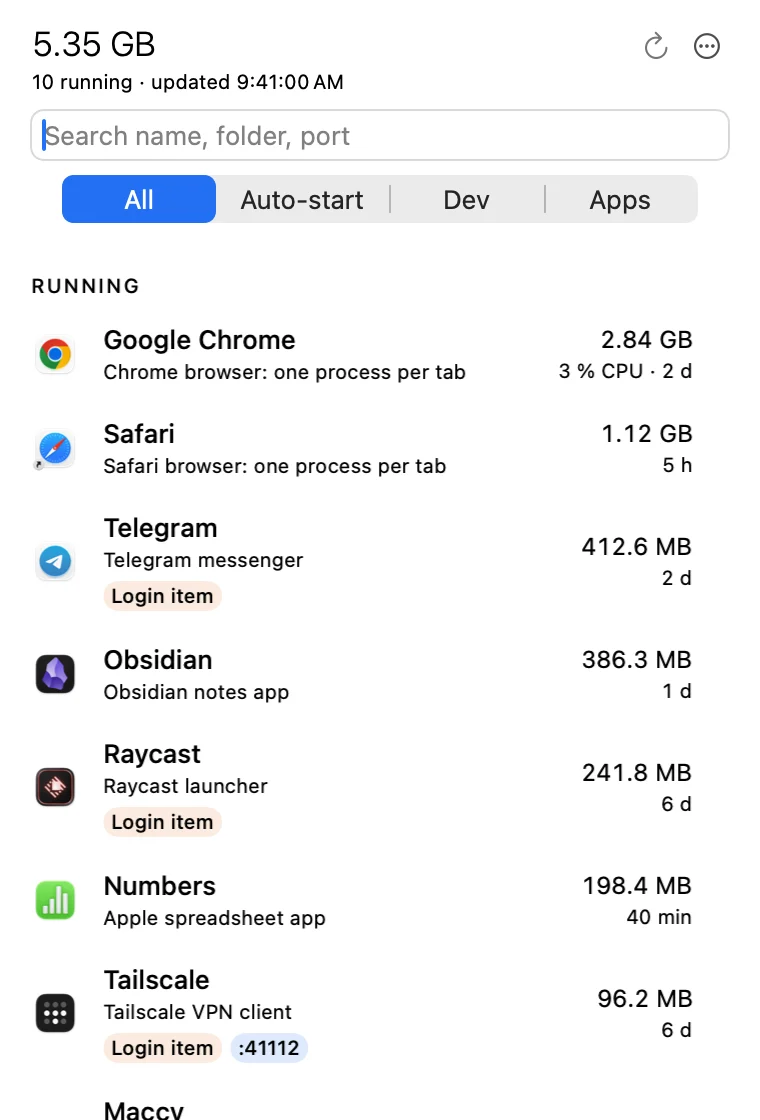
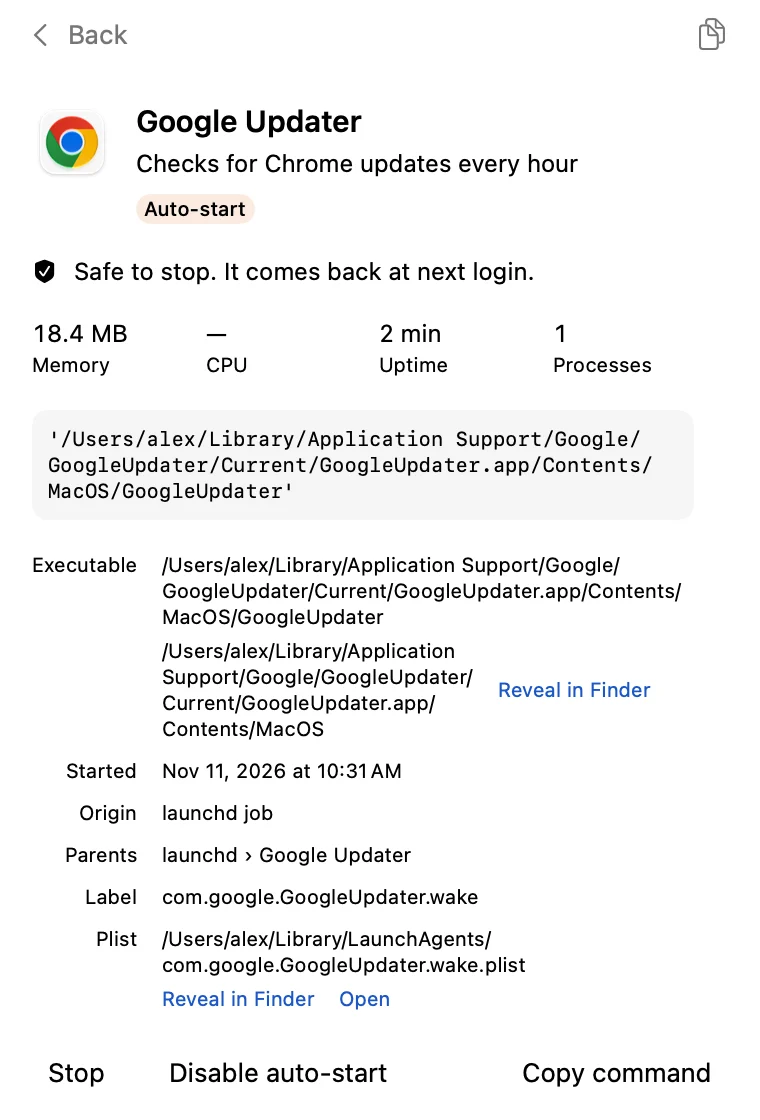
Open any item. One line tells you if it is safe to stop and if it starts again at login. Stop it now, or turn off its auto-start. Re-enable puts it back exactly as it was.
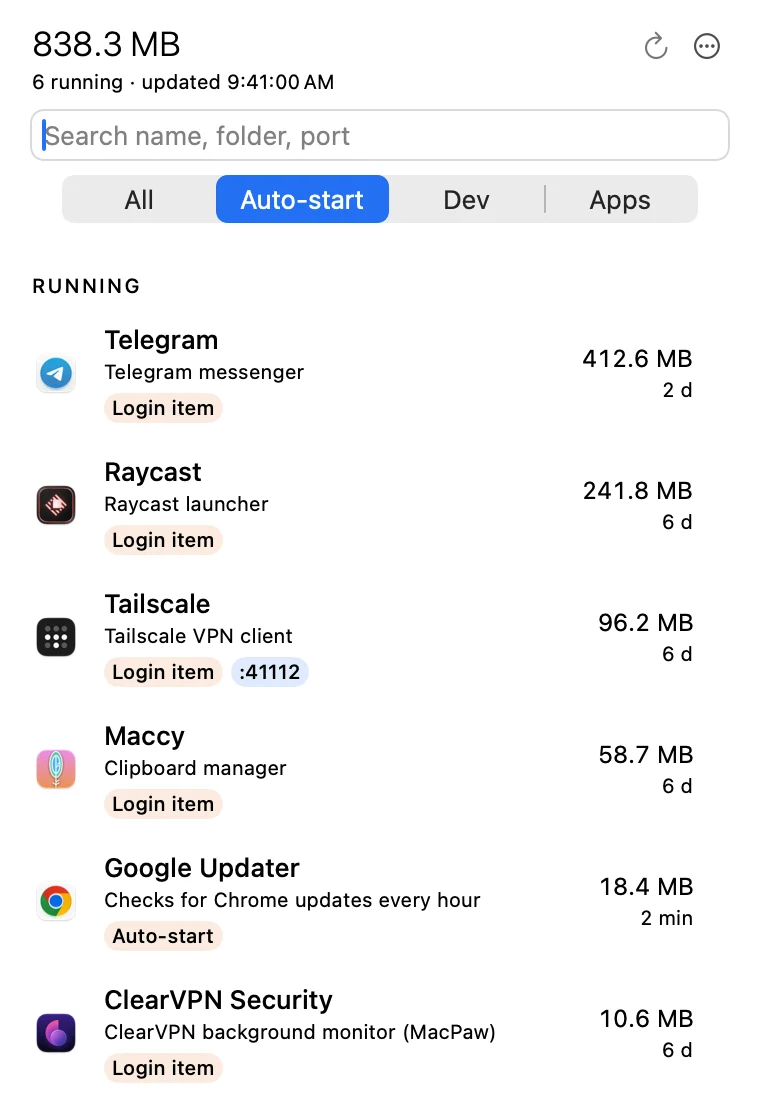
The Auto-start filter shows login items, launch agents and scheduled jobs, including the ones that are not running now.
| Action | What happens | Comes back? |
|---|---|---|
| Stop a launchd job | launchctl bootout for your user | At next login, if it has RunAtLoad or KeepAlive |
| Quit an app | Same as ⌘Q | If it is a login item |
| Stop another process | Polite stop; after 3 s it offers Force Quit | No |
| Disable auto-start | Stops the job and moves its plist to a Disabled folder | No, until you press Re-enable |
| Re-enable / Load / Run now | Puts the plist back and loads the job | Yes |
It asks first. Every action that stops something asks inline, and warns about live sessions, their child processes and running builds.
Only your own processes. Root daemons are read-only. Apple system processes are hidden by default and can never be stopped.
No wrong target. Before each signal it checks the process start time again, so a reused process ID is never hit.
Reversible. Disable auto-start parks the plist; Re-enable puts it back exactly as it was.
Light. It samples only while the panel is open. Closed, it uses 0% CPU. About 20 MB of memory at launch.
Quiet. No privacy prompts. Files on external drives are never read.
No subscription. All actions are free for 14 days.
$0
$14
Buying opens in a few days. Your 14-day trial starts when you first open the app.
Practical answers that work with or without the app.
Four ways to find background processes, launch agents and login items on a Mac: Activity Monitor, Login Items settings, the LaunchAgents folders and Terminal commands.
Read the guide →Stop apps from opening when you start your Mac: remove them from Open at Login, turn off the app's own setting, untick Reopen windows, and find the launch agents that settings miss.
Read the guide →The Allow in the Background list in macOS Login Items shows apps with background helpers. Learn what the switch does, what breaks if you turn it off, and how to find the file behind it.
Read the guide →You quit it, you killed it, and it is back. How launchd, RunAtLoad, KeepAlive, schedules and login items restart apps on a Mac, and how to tell which one is doing it.
Read the guide →Step-by-step: find a launch agent or daemon, check what it does, stop it with launchctl bootout, keep it off with launchctl disable, and turn it back on. Works on macOS 13 to 26.
Read the guide →No, not for normal use. It runs without root. Only one optional step asks for it: reading the system list of login items, which you start yourself with Check login items… in Settings. The result is saved, so it does not ask again.
It can only stop your own processes. Apple system processes are hidden by default and never stoppable, and root daemons are read-only. Disable auto-start moves the plist to a Disabled folder, and Re-enable puts it back.
Activity Monitor shows processes, but not why they run. Underneath connects each process to its launchd job or login item, groups helpers under their app, explains the item in plain words, and tells you if it comes back after reboot.
System Settings shows a list of names and switches. Underneath shows the plist, the label, RunAtLoad and KeepAlive, the command, memory, ports and whether the item is running right now.
Yes. The Dev filter lists dev servers with their ports, Homebrew services and builds.
It samples every 4 seconds only while the panel is open. When the panel is closed it uses 0% CPU, apart from a short menu-bar count update about every 10 minutes, which you can turn off.
macOS 15 Sequoia or later.
No. The App Store sandbox does not allow an app to read other apps’ launchd jobs or stop them, so Underneath is a direct download, signed and notarized by Apple.