iPhone social video guide
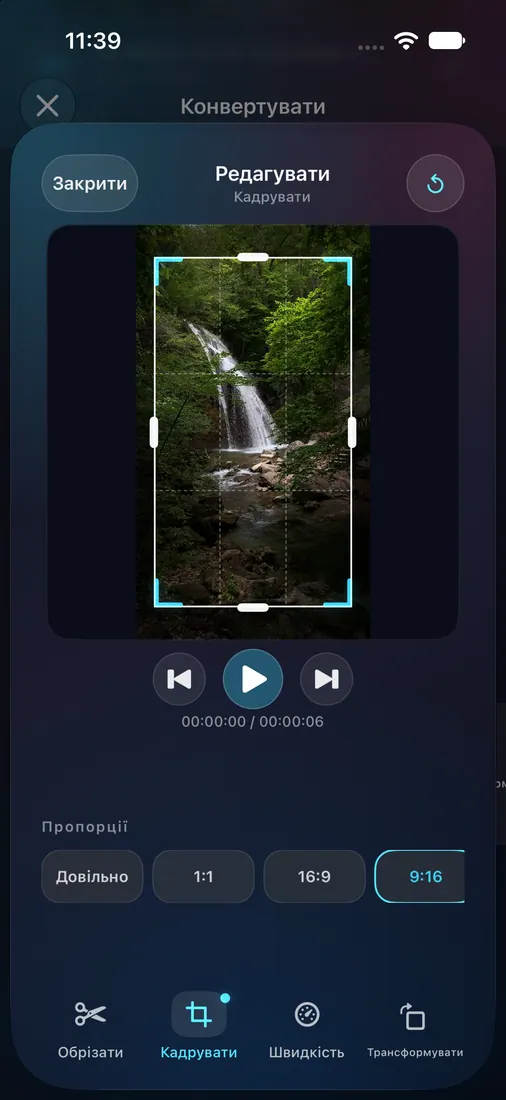
Crop a video to vertical 9:16 on iPhone
A vertical crop can prepare a video file for a social post. ClipKit exports the file; you still review it and upload it in the social app yourself.
Choose a vertical preset in ClipKit
- Import one local video from Photos or Files.
- Open Export preset and choose TikTok, Instagram Reels, or YouTube Shorts.
- Review the crop in the editor. The vertical presets use 9:16; adjust the frame so the subject stays visible.
- Confirm the resolution and frame rate, export the MP4, and play it to check framing, sound, and duration.
What the preset sets
The tested TikTok preset selected MP4 at 1080p and 30 fps, opened Crop with 9:16 selected, and retained the crop after closing the editor. The resulting test file measured 1080 × 1920 at 30 fps with H.264 video and AAC audio. It was 12,470,648 bytes; the 6.07-second input was 9,183,260 bytes. This single Simulator QA example does not predict your export size.
Reels uses the same 9:16 and 30 fps preset in the code. Shorts uses 9:16 and retains the source frame rate. Only the TikTok export was measured here, so check the output for your selected preset.
Review before posting
A preset prepares a file; it does not publish to TikTok, Instagram, or YouTube, and it cannot guarantee that a platform will accept the upload. Check the crop, audio, dimensions, and file size in the exported MP4 first. Cropping or converting may make a file larger.