Clipex · English
How to change the speed of part of an audio file on iPhone
Change the timing of one section while leaving the surrounding audio in place. Slower sections last longer; faster sections take less time.
How to do it in Clipex
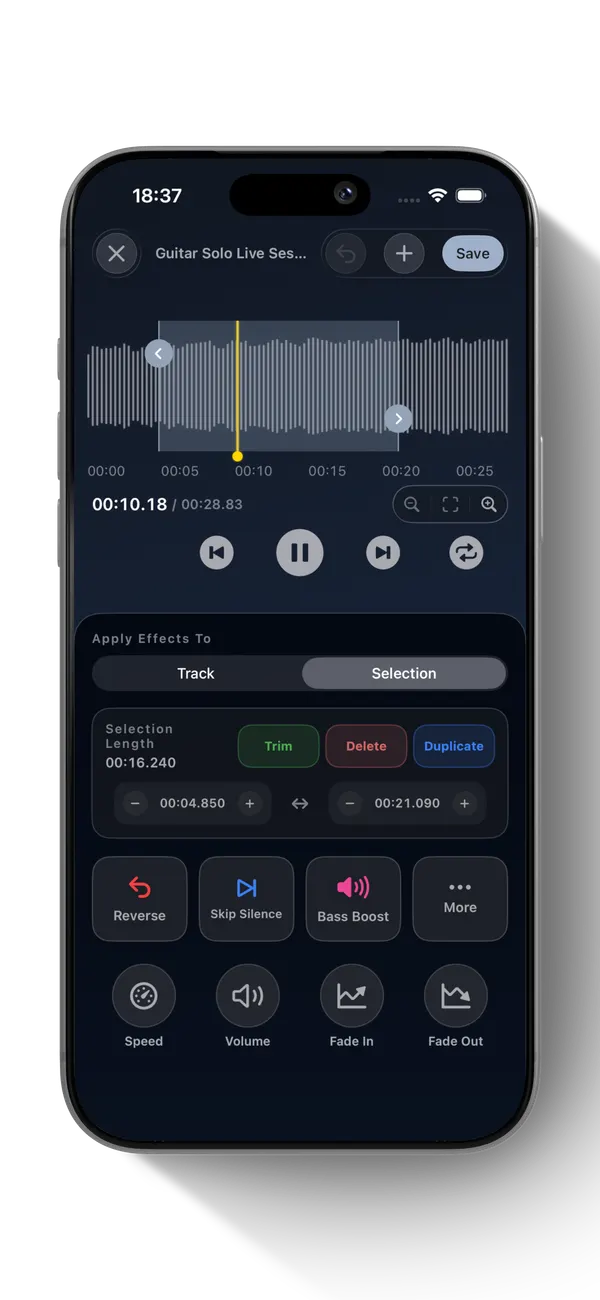
- Open a compatible audio item in Clipex and enter Editor.
- Choose Selection, set the range, tap Speed and select 0.5×, 0.75×, 1.5× or 2×.
- Preview the edited section and surrounding audio, then save a library copy or export it through iOS.
What to know
Speed changes duration. Processing and sound quality depend on the source and device. The app also has a separate full-track Speed control; this guide covers selected regions.