iPhone video guide
How to convert MOV to MP4 on iPhone
MOV and MP4 are containers for video and audio. Converting a file can help when a service or device expects MP4, but it does not guarantee a smaller file or identical quality.
Convert a local MOV with ClipKit
- Open ClipKit and import one compatible video from Photos or Files.
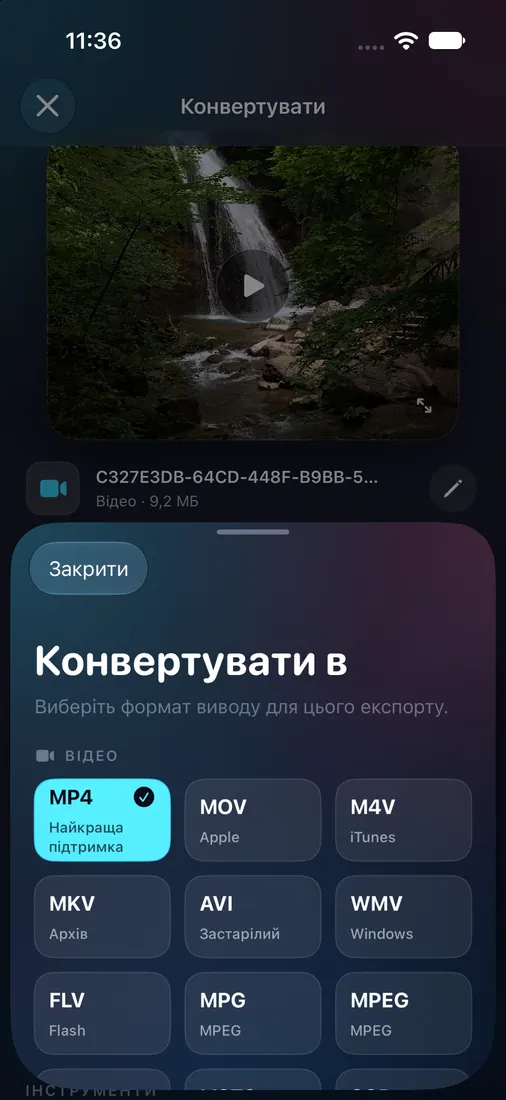
- Open the output format picker and choose MP4.
- Review the resolution and frame-rate settings. Leave them as needed for your use; changing the format does not require lowering them.
- Tap Convert, then play the result and check its format, dimensions, duration, and file size before sharing.
Conversion does not mean compression
In one isolated iPhone Simulator QA run with a licensed 6.07-second test clip, ClipKit exported a 1440 × 2560, 30 fps H.264/AAC MP4. The measured file grew from 9,183,260 bytes to 17,127,435 bytes. This single test is not a typical-size promise; a format change may make your copy larger or smaller.
If you need a file under a specific limit, use the video compression guide and check the exported size.
Compatibility depends on the source
ClipKit supports MOV and MP4 on the tested path, but other codec combinations may not work. Keep the original, and check that picture, sound, and duration are right before deleting or sending anything.