iPhone GIF guide
How to turn a video into a GIF on iPhone
A GIF can show a short moving moment in a chat, but it has no sound and can be larger than the source video. Start with a brief clip and check the exported file before sharing.
Make a GIF with ClipKit
- Import one compatible video from Photos or Files.
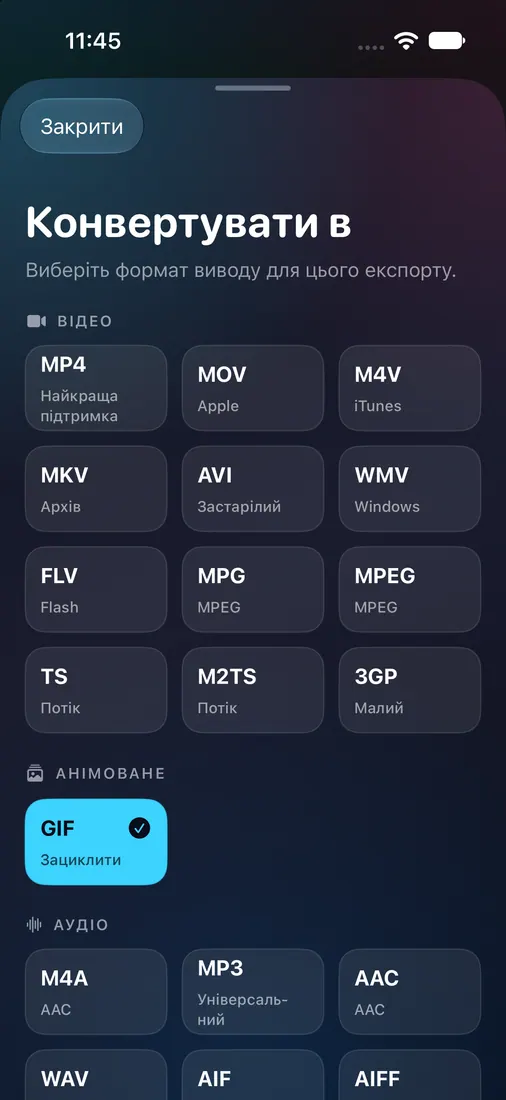
- Open the output format picker and select GIF.
- Trim the video first if you only need one moment.
- Tap Make GIF, save or share the result through iOS, then open it in a compatible viewer to check the animation and file size.
GIFs are silent and may be large
ClipKit's GIF export removes the audio track. In one isolated iPhone Simulator QA run, a 6.07-second MOV became a 540 × 960 GIF with 73 frames at 12 fps. The GIF measured 31,944,424 bytes, compared with 9,183,260 bytes for the input video. This is one test example; results vary with the clip and settings.
For a message that needs speech or music, keep a video format instead. If a file-size limit matters, check the GIF in Files before sending; do not assume it will be smaller than the video.
Check where you plan to share it
In the tested workflow, ClipKit's result screen did not include an animation player, so check the saved GIF in a compatible viewer. Confirm that the destination accepts GIF files and their size. Very long or detailed clips can produce large GIFs, so a shorter trim can be easier to share.